Training requests
A training request asks to run a federated learning job on your Client's data. When you approve it, you decide which local records take part in the training.
Review a training request
- Open Requests → Training Requests. The page lists all training requests received by your Client.
- Select the training request you want to review. The Training Request Details dialog opens.
- Review the information on the Overview, Selected Data, and Workflow tabs, as described below.
- On the Overview tab, clear the checkbox of any patient who should not take part in the training.
- Select Accept to approve the request, or Reject to decline it. Close the dialog to leave the request unchanged and decide later.
Overview tab
The Overview tab summarizes the request and lists the local patients requested for the training.
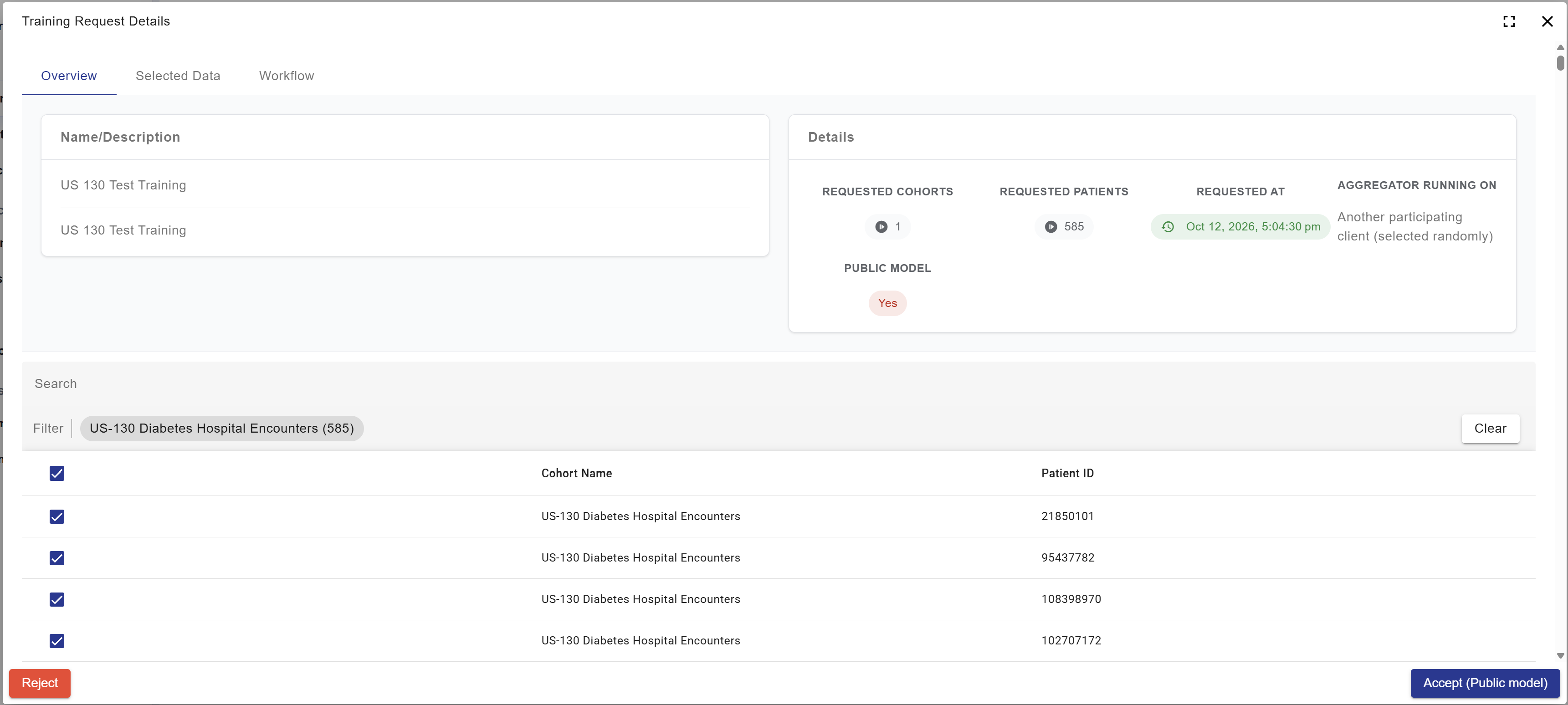
Name/Description shows the name and description of the training.
Details contains the following fields:
| Field | Description |
|---|---|
| Requested Cohorts | The number of local cohorts included in the request. |
| Requested Patients | The number of local patients included in the request. |
| Requested At | The date and time the request was received. |
| Aggregator Running On | Where the aggregator that combines the local training results runs, for example on another participating client selected randomly. |
| Public Model | Whether the resulting model is made public. If not, it is limited to the participating sites and the requesting user. |
The patient list below the details shows the Cohort Name and Patient ID of each requested patient:
- Use Search and the cohort Filter to narrow the list. Select Clear to reset the filter.
- All patients are selected by default. Clear the checkbox of a patient to exclude that patient from the training. Use the checkbox in the header row to select or clear all patients in the list.
Selected Data tab
The Selected Data tab lists the patient information that will be available to the training. Each variable is shown with its description and data type.
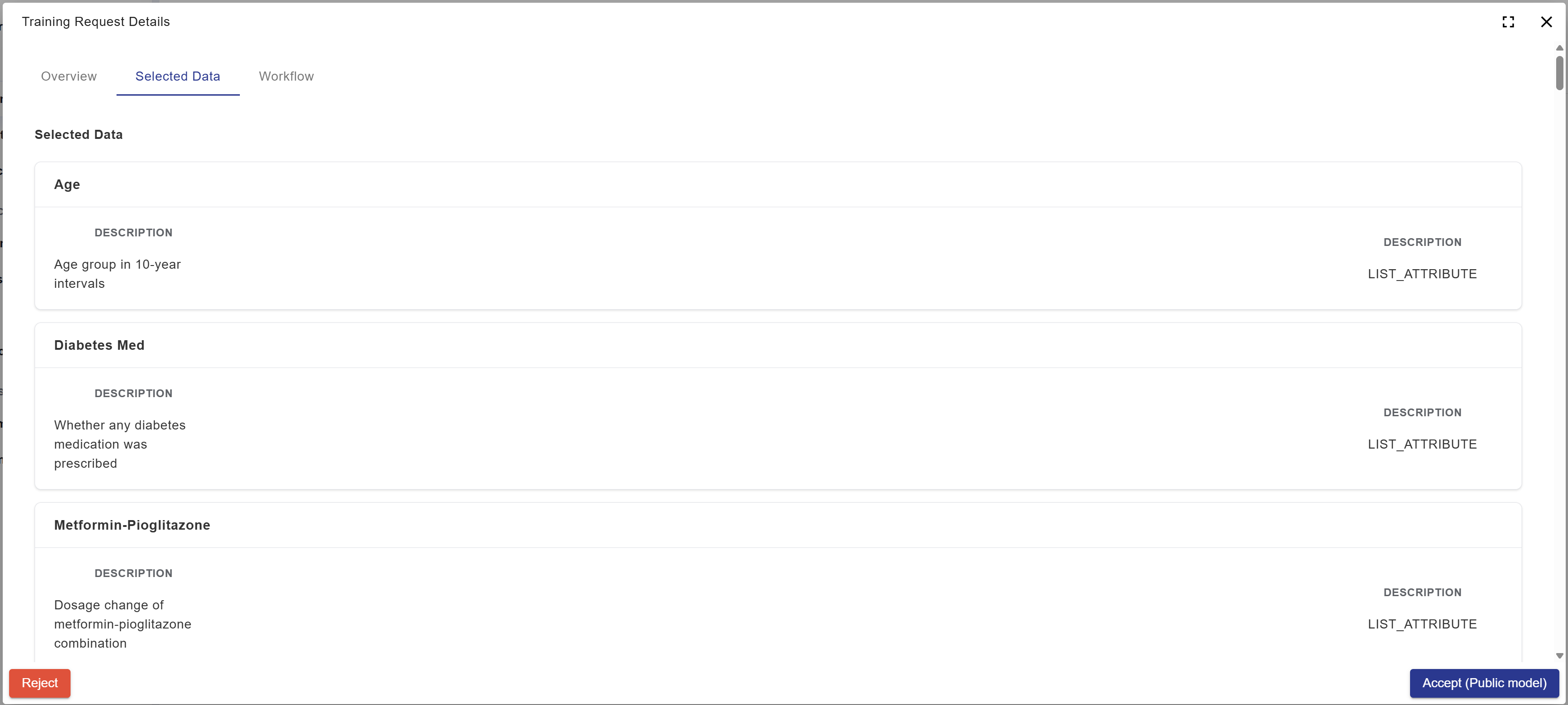
Before accepting, verify that sharing this information complies with your institution's data governance policies.
Workflow tab
The Workflow tab shows the workflow the training will execute, as a diagram of its tools.
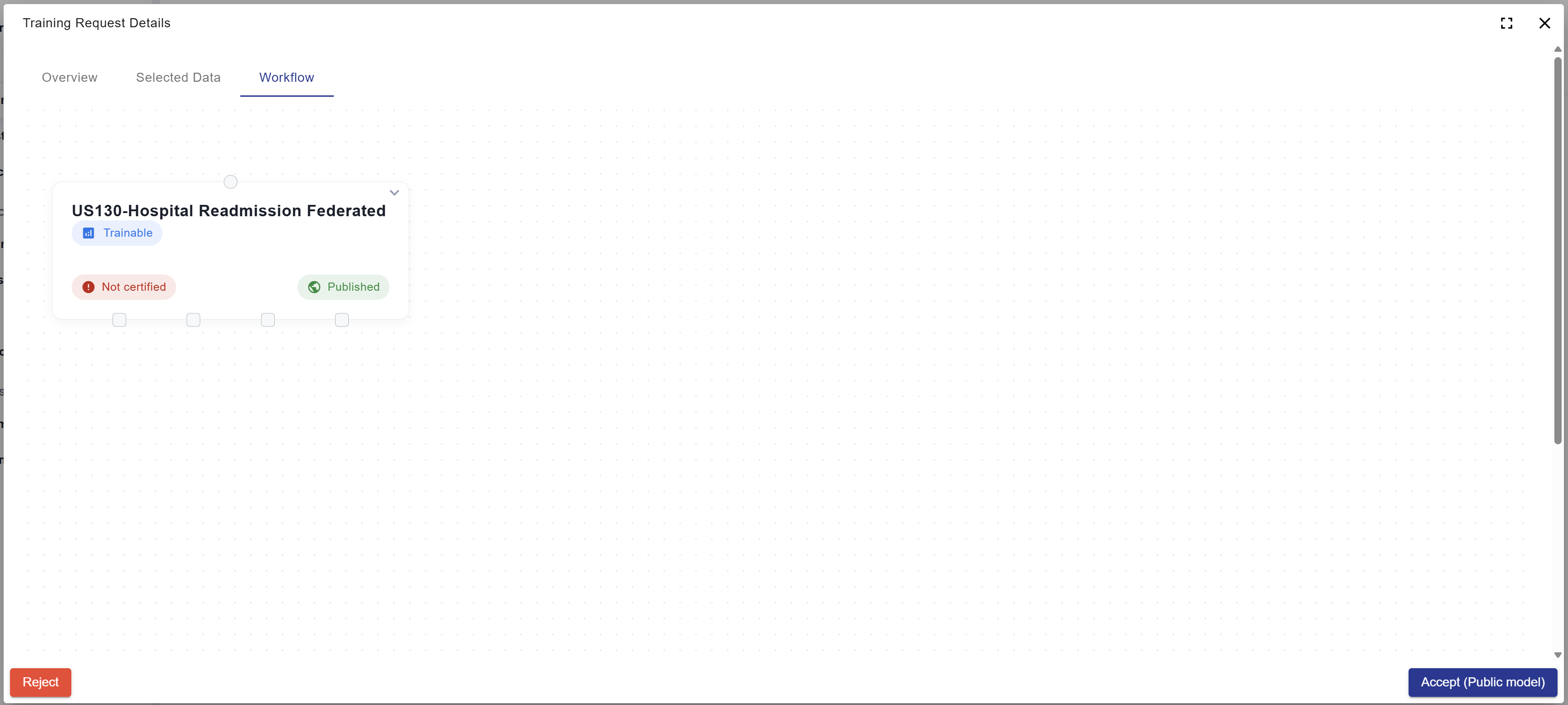
Each tool shows:
- Its name and type, for example
Trainable. - Whether it is certified, for example
Not certified. - Its publication status, for example
Published.
Pay particular attention to uncertified tools, because they have not passed the certification process.
Automatic approval
Training requests can be approved automatically if a matching access permission sets Automatic training access for to All. A tool that requests network access outside the federated learning channel always requires manual approval, regardless of this setting. See How permissions decide the outcome.
After acceptance
After a training request is accepted, the training appears in Governance → Trainings, where you can follow its status and review the data it used. See Trainings.